SoftwareNDT Backup
Home > SoftwareNDT Backup
What is a Backup and Why is it Important?
A backup is a copy of data stored separately from the original data, ensuring that it can be restored in case of loss or corruption. This process is vital for individuals and organizations alike, as it provides a safety net against various data loss scenarios, including hardware failures, accidental deletions, and cyber threats. Understanding the significance of backups is essential in the digital age, where data is a critical asset.
In simple terms, a backup refers to creating a duplicate of important files and data on a different storage medium. This duplication can occur at regular intervals, allowing for incremental backups, where only changes made since the last backup are stored. The goal is to ensure that in the event of data loss, one can recover the most recent version of their files.
Regular backups are essential for maintaining data integrity and availability. As data grows and accumulates, the risk associated with data loss also increases. By having an established backup routine, individuals and organizations can mitigate these risks and ensure operational continuity. Additionally, regular backups protect against ransomware attacks, where malicious software encrypts files and demands payment for their release.

The absence of backups can lead to devastating consequences. For individuals, losing personal photos, financial documents, or important emails can result in emotional distress and financial repercussions. For businesses, data loss can disrupt operations, damage reputations, and result in significant financial losses. According to studies, a significant percentage of companies that suffer major data loss go out of business within a year. The importance of having a reliable backup system cannot be overstated.
How to Create a Backup
Step-by-Step Guide to Backing Up Data
Creating a backup involves a series of steps that can vary depending on the method chosen. The following is a general guide:
Identify Important Data:
Determine what files and data need to be backed up. This could include documents, media files, application data, and system settings.
Select a Backup Method:
Choose a suitable backup method (e.g., external drive, cloud service, etc.). Each method has its pros and cons, which should be considered based on your needs.
Schedule Regular Backups:
Set a schedule for backups—daily, weekly, or monthly—depending on how frequently your data changes.
Test Your Backups:
Regularly test restoring data from backup copies to ensure that they work correctly and that the data is not corrupted.
Best Practices for Effective Backups
To ensure the effectiveness of your backups, consider the following best practices:
- Use the 3-2-1 backup rule: Keep three copies of your data (one primary and two backups), use two different media types (e.g., external drive and cloud), and store one copy off-site.
- Automate your backups whenever possible to reduce the risk of human error.
- Keep your backup software updated to protect against new vulnerabilities
Types of Storage Drives for Backups
External Hard Drives
External hard drives are a widely used backup solution due to their affordability and ease of use. They connect via USB, making it simple to transfer files from a computer to the drive. External hard drives come in various sizes, with options ranging from several hundred gigabytes to several terabytes of storage capacity. This variety allows users to choose a drive that suits their needs, whether for storing a few files or large quantities of data.
However, while external hard drives are great for local backups, they are susceptible to physical damage, theft, and data corruption. Therefore, it is advisable to use them in conjunction with other backup methods for enhanced security.
SSD (Solid State Drive)
SSD (Solid State Drive) hard drives are a type of data storage device that utilize flash memory to provide faster access to data compared to traditional HDDs (Hard Disk Drives). Unlike HDDs, which rely on spinning disks, SSDs have no moving parts.
The lifespan of SSD drives is a critical factor for users considering storage options. Typically, SSDs have a lifespan measured in terabytes written (TBW), which indicates how much data can be written to the drive before potential failure. On average, consumer SSDs can last anywhere from three to ten years, depending on usage patterns and the quality of the drive.
Network Attached Storage (NAS)
Network Attached Storage (NAS) devices are designed for more robust backup needs and are ideal for homes and small offices. A NAS device connects to the local network, allowing multiple users to access and back up files from various devices. They often come with built-in redundancy features, such as RAID configurations, which provide additional protection against data loss.
The main advantage of NAS is its scalability—users can add more storage as needed without replacing the entire device. However, NAS devices tend to be more expensive than external hard drives and may require some technical knowledge to set up and maintain.
Understanding RAID 1 Drives
What is a RAID 1 Drive?
RAID 1, or Redundant Array of Independent Disks level 1, is a data storage virtualization technology that combines multiple physical disk drive components into one logical unit. The primary function of RAID 1 is to provide redundancy; it mirrors the data across two drives. This means that if one drive fails, the data remains intact on the other drive(s), allowing for seamless access and minimal downtime.
The most significant advantage of RAID 1 is its data redundancy. In the event of a hardware failure, users can quickly switch to the mirrored drive, ensuring data availability and reliability. Additionally, RAID 1 can improve read performance since data can be read from multiple drives simultaneously. However, it is important to note that RAID 1 does not replace a comprehensive backup strategy; it is merely a layer of protection against hardware failure.
Cloud Storage Solutions
Cloud storage solutions have gained popularity due to their convenience and flexibility. Users can access their data from anywhere with an internet connection, making it easy to manage backups across multiple devices. Services like Amazon S3, Google Cloud Storage, and Microsoft OneDrive offer varying features, file sharing, and collaboration tools.
While cloud storage provides a high level of convenience, it is essential to consider factors such as ongoing costs, data security, and internet connectivity when choosing this option. Users should also ensure they are using strong passwords and two-factor authentication to protect their data stored in the cloud.
The lifespan of storage media varies greatly:
HDD (hard disk drive): 3–10 years
HDDs due to mechanical wear.
SSD (Solid-State Drive): 10 years (depending on TBW/write cycles).
SSDs wear out due to write operations. SSDs are not ideally suited for long-term storage without power, as the charge may decrease (within 2 years).
USB flash drive / SD card: 10–30 years (depending largely on quality and usage).

Overview of SoftwareNDT Backup
SoftwareNDT Backup is a comprehensive backup solution designed for both personal and professional use. It offers a user-friendly interface and a variety of features that cater to different backup needs. The software supports multiple backup methods, including full, incremental, and differential backups. This flexibility allows users to customize their backup strategy based on their specific requirements and data usage patterns.
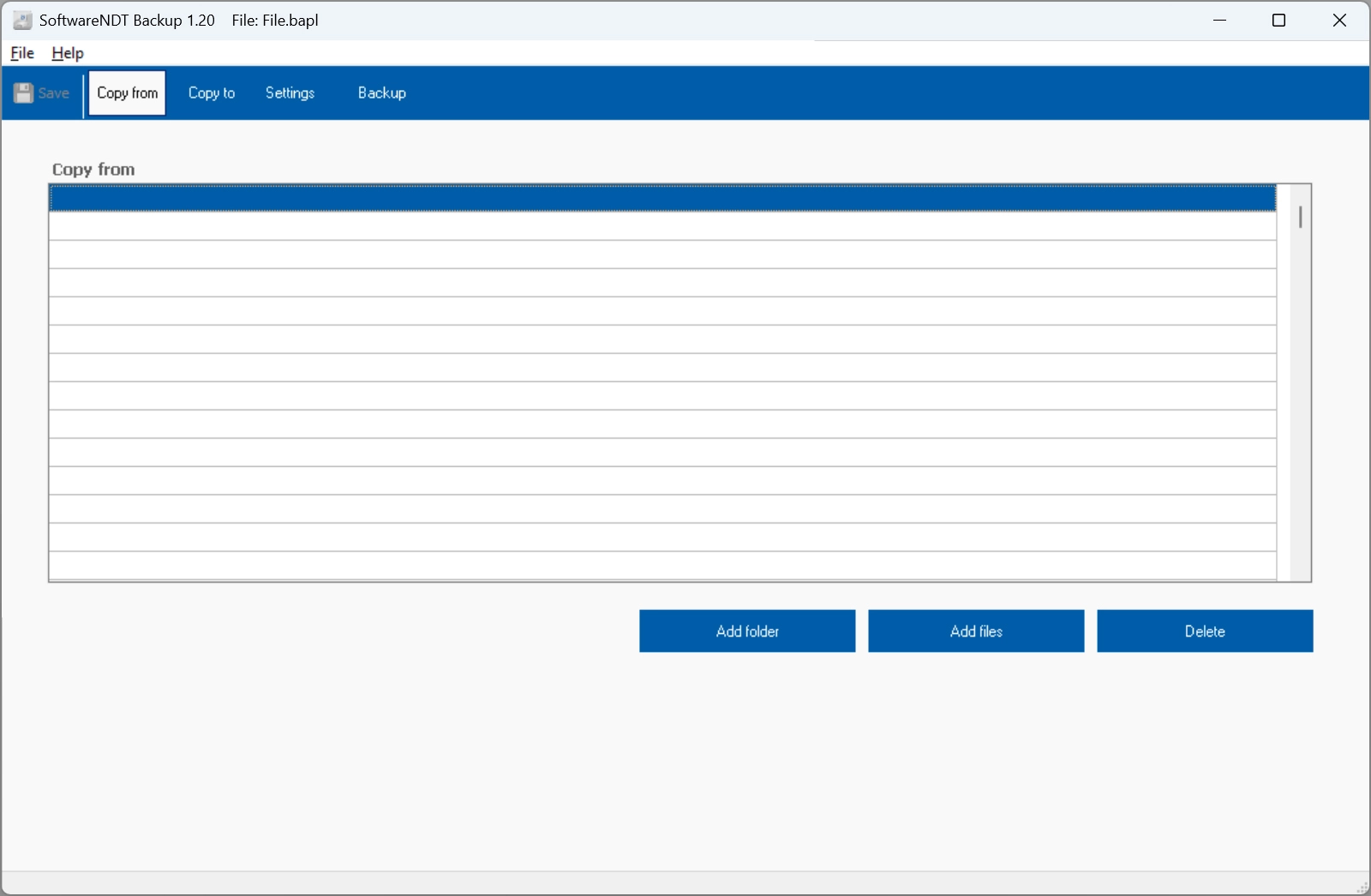
Users can set up automated backups at their convenience, ensuring data is regularly updated without manual intervention.
Select the files and folders you want to secure. These files and folders can come from different sources, such as two different drives.
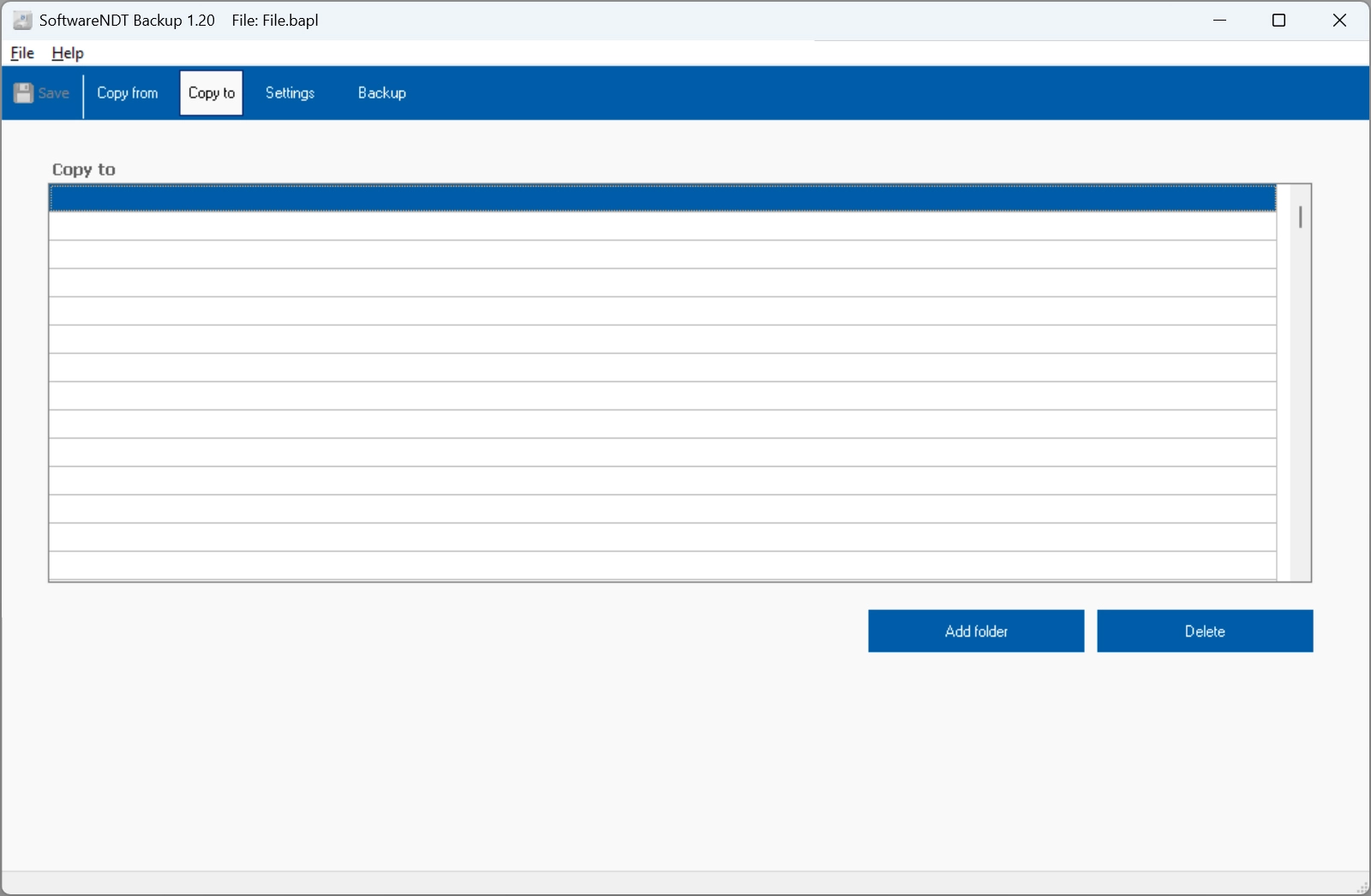
Next, select the media and specify the folder. Make sure that the media are independent of one another. For example, two hard drives or an external SSD and a USB flash drive. A NAS drive is also a good choice.
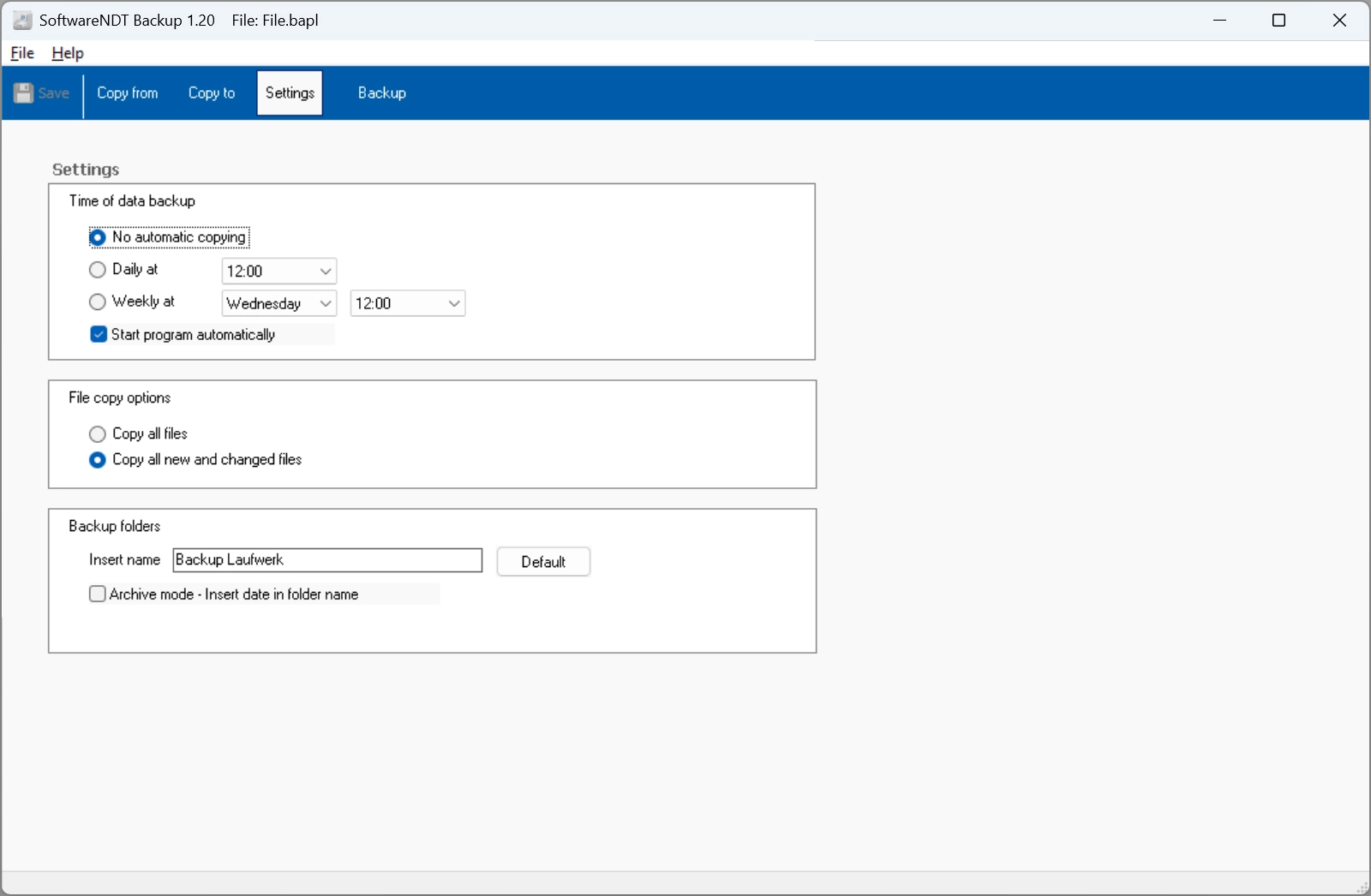
Next, you’ll need to configure a few settings for the strategy and the schedule. For example, you can choose to back up only the files and folders that have been modified. You can also specify whether the process should be started manually or at a specific time. Here, you can set up daily actions at a specific time or a run on a specific day of the week at a selected time. You can choose whether the process should always be saved to a single directory or whether a new directory should be created with the current date in its name. This allows you to keep different copies from different points in time.
You can now start the process manually or wait for an automatic run to occur. There is now no reason not to have an up-to-date backup of your important files.
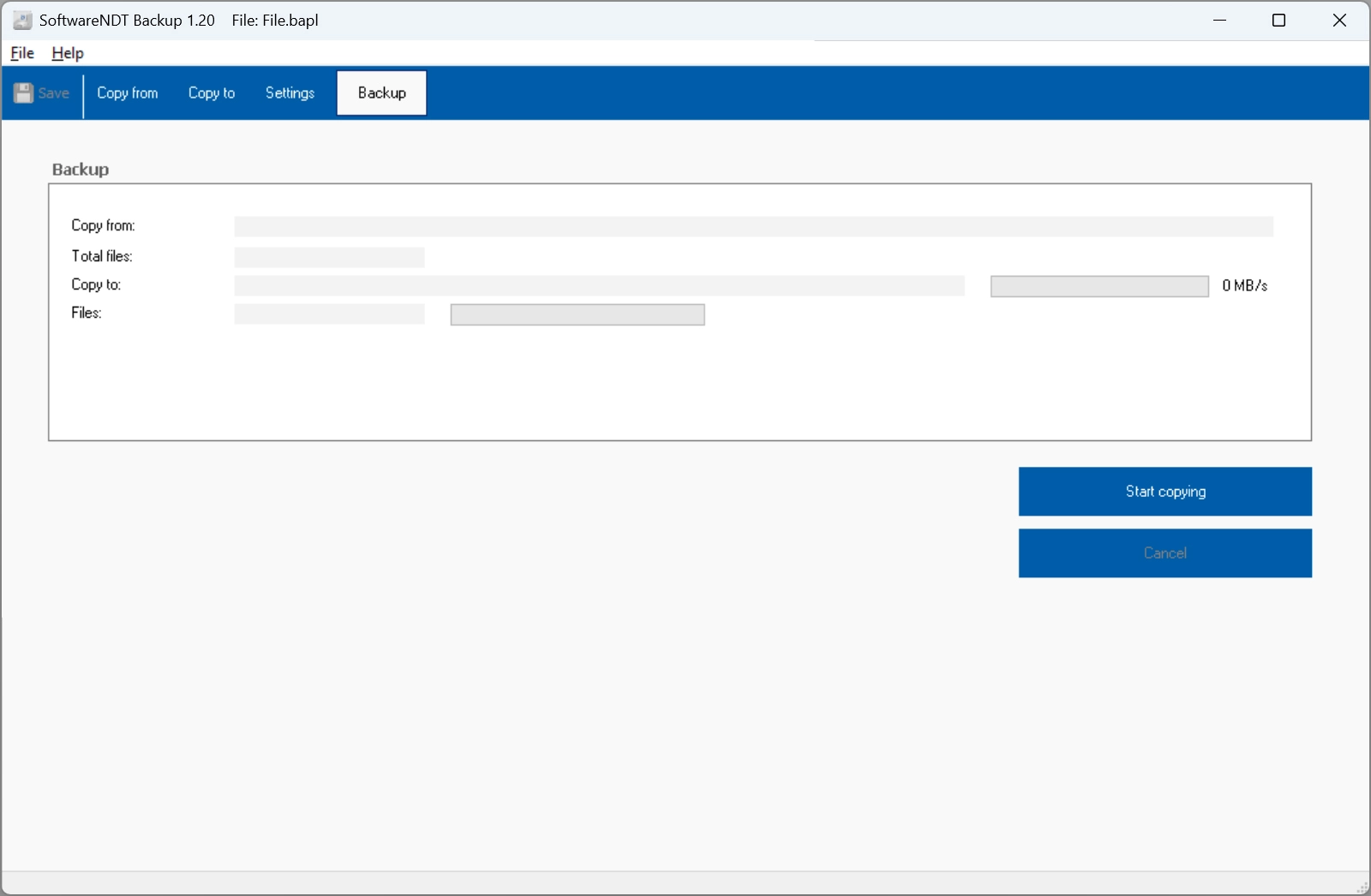
Try the program for free. The trial version allows a maximum of 20,000 copy actions per backup run.
Download Size: 4.69 MB
If you like it, you can buy the Pro version. It costs a one-time fee of 14.95 EUR (excl. tax).